
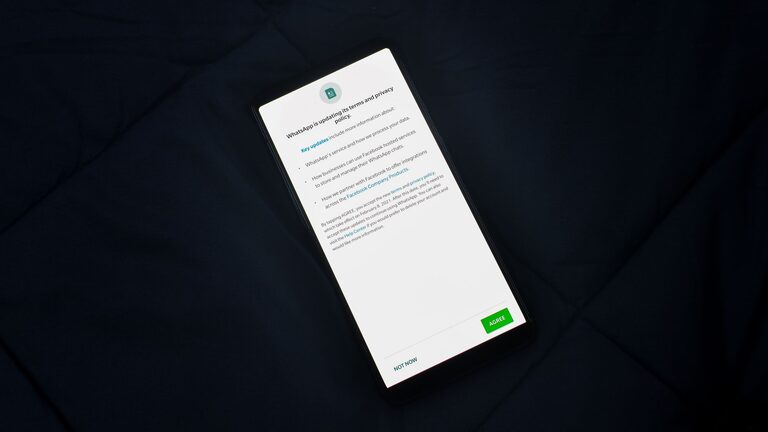
Smartphones can make everyday tasks easier, from staying in touch with family to checking the weather and managing appointments. However, older phones may still have apps, accounts, and settings that were added years ago and are no longer needed.
Reviewing privacy settings can help you understand what information your phone shares and which apps can access it. The steps may look slightly different on an iPhone, Android phone, or older model, but the basic ideas are similar.
You do not need to change every setting at once. Start with the areas below, and review them one at a time.
Start With a Quick Privacy Check
Before changing settings, make a list of the apps you use regularly. Include messaging, email, shopping, travel, social media, weather, games, and banking apps.
Remove apps that you no longer use. An unused app may still have permission to access information, send notifications, or connect to an account.
To remove an app:
- Press and hold the app icon.
- Choose the option to uninstall or delete it.
- Confirm the removal.
- Restart the phone if it continues to appear or behave unusually.
If you are unsure whether an app is safe to remove, search for its name or ask a trusted person for help. Avoid deleting core phone apps unless you know what they do.
Review App Permissions
Apps often request access to features such as your camera, microphone, contacts, photos, location, or calendar. Some access may be useful, but not every app needs every permission.
Open your phone’s Settings app and look for a section called Privacy, Security and Privacy, or App Permissions. Review permissions by app or by category.
Pay close attention to:
– Location: A map app may need location access, while a simple puzzle game may not.
– Camera: Allow access only for apps that take photos or scan documents.
– Microphone: Check whether recording or calling apps need this permission.
– Contacts: Consider whether an app truly needs your address book.
– Photos and files: Limit access when possible.
– Calendar: Review apps that can view or change events.
When available, choose options such as Allow only while using the app or Ask every time. These choices can reduce access when an app is not active.
Check Location Sharing
Location information can reveal where you live, work, shop, or spend time. Review both phone-wide location settings and individual app permissions.
You can usually find these controls under Settings, followed by Privacy and Location Services or Location.
Consider the following:
– Turn off location access for apps that do not need it.
– Use access only while an app is open when that option is available.
– Review location sharing with family members or contacts.
– Check whether photo apps add location details to pictures.
– Turn off location history if you do not use the feature.
Location sharing can be helpful for maps and finding a lost device, so there is no need to disable every location feature. The goal is to choose settings that match how you use the phone.
Strengthen the Screen Lock
A screen lock is one of the simplest ways to protect personal information if the phone is lost or left unattended.
Use a passcode, password, pattern, or biometric option such as fingerprint or face recognition. A longer passcode is generally harder for someone else to guess than a short one.
Review these settings:
– Set the phone to lock automatically after a short period.
– Avoid easy codes such as birthdays or repeated numbers.
– Do not share your passcode in messages or notes.
– Keep your fingerprint or face recognition settings up to date.
– Check whether sensitive information appears on the lock screen.
If you use a fingerprint or face recognition feature, keep a passcode as a backup. Your phone may request it after a restart or after a certain amount of time.
Limit Lock Screen Notifications
Notifications can display message previews, account alerts, or other private information while the phone is locked. Anyone nearby may be able to read them.
Open the notification settings and look for options related to previews, lock screen alerts, or sensitive content. You may be able to:
– Hide all notification details until the phone is unlocked.
– Hide previews for selected apps.
– Show only the app name.
– Turn off lock screen notifications for unnecessary apps.
Messaging, email, shopping, and social media apps are good places to start. You can still receive an alert without showing the full message.
Review Account Access and Saved Passwords
Your smartphone may be signed in to email, cloud storage, shopping services, social networks, and other accounts. Review which accounts are connected to the phone.
Remove accounts you no longer use, especially if the phone was previously shared with someone else or belonged to another family member.
Also review saved passwords in the phone’s password manager or browser. Delete old entries and update passwords for important accounts. Use a different password for each major account whenever possible.
Turn on two step verification for accounts that support it. This adds an extra sign-in check, such as a code or approval on another device. Keep recovery email addresses and phone numbers current so you can regain access if needed.
Check Backup and Cloud Settings
Backups can protect contacts, photos, and other information if the phone is lost or damaged. However, it is helpful to know what is being backed up and where it is stored.
Review:
– Which photos and videos are uploaded automatically.
– Whether contacts are saved to an online account.
– Which apps store data in the cloud.
– Whether old backups are still needed.
– Which devices can access your cloud account.
If you share a cloud account with another person, check whether that person can view photos, files, contacts, or other personal information. Separate accounts may provide better control over private content.
Review Browser and Search Settings
Your web browser may save browsing history, cookies, passwords, and form information. Open the browser settings and review what it stores.
You may want to:
– Clear old browsing history.
– Delete saved passwords you no longer use.
– Remove unfamiliar extensions or add-ons.
– Review websites allowed to use location, camera, or microphone access.
– Turn off automatic form filling for information you do not want saved.
Clearing browsing history does not erase information held by websites or online accounts, but it can remove local records from the phone.
Check Bluetooth, Wi-Fi, and Nearby Sharing
Wireless features can be convenient, but review them regularly.
Turn off Bluetooth, Wi-Fi, or nearby sharing when you are not using them, especially on older phones that remain active for long periods. Avoid connecting automatically to unfamiliar wireless networks.
For Bluetooth and nearby sharing, check whether the phone is visible to everyone or only to known contacts. Remove old devices, such as headphones or vehicles you no longer use.
When using public Wi-Fi, avoid entering sensitive information unless the connection is trusted and the website uses a secure connection.
Keep the Phone Updated
Older smartphones may not receive the newest software updates, but check for available updates anyway. Updates can improve security, fix problems, and add privacy controls.
Open Settings and look for Software Update, System Update, or a similar option. Install updates from the phone’s built-in settings rather than from links in unexpected messages or pop-ups.
If the phone no longer receives updates, be more cautious about installing unfamiliar apps and opening links. Consider replacing the device when it can no longer run essential security updates or important apps safely.
Make Privacy Reviews a Routine
Privacy settings do not need to be reviewed every day. Set a reminder to check them every few months and whenever you install a new app, change a password, or give the phone to someone else.
A simple routine can include:
- Remove unused apps.
- Review app permissions.
- Check location and notification sharing.
- Confirm the screen lock works.
- Review account and backup settings.
- Install available updates.
Taking a few minutes to review these controls can make an older smartphone easier and safer to manage. If a setting is confusing, leave it unchanged until you can consult the phone’s official support page or a trusted person.